sunnuntai 19. marraskuuta 2017

ANIMAATIO- JA PELIHISTORIA

NME17AP

Lukuvuosi 2017-18


Animaatio- ja pelihistoriaan tutustuminen harjoitustehtävien avulla.


Vastaukset tai linkki vastauksiin palautetaan sähköpostin liitteenä Harrille.

Palauttakaa mielellään kaikki tehtävät kerralla.


ANIMAATIOHISTORIA:


"Animaatiolla ja elokuvalla on yhteinen historia, joten animaation syntyyn vaikuttaneet tapahtumat ovat pitkälti samoja kuin elokuvan.

Taiteessa on vuosisatojen kuluessa usein esiintynyt pyrkimystä liikkeen kuvaamiseen. Varhaisimmat tunnetut liikesarjat löytyvät egyptiläisistä seinämaalauksista n. 2000 vuotta ennen ajanlaskumme alkua. Leonardo da Vincin tunnetuimpiin teoksiin kuuluu kehän ympäröimä mies, jonka raajat kuvataan useissa asennoissa.

Itse animaatio on kulkenut pitkän tien ennakkoluulottomista kokeiluista ja nerokkaasta taiteesta kaupallisuuden kautta tekniseen ihannointiin. 1900-luvun alusta tähän päivään animaation tie on taiteelliselta kannalta katsottuna ollut enimmäkseen alamäkeä.

Mutta kun kaupallisuuden lait alkavat tuottaa tarpeeksi merkityksetöntä ja sielutonta ”viihdettä”, ja tekninen kikkailu saapuu tiensä päähän, löytyykö silloin jokunen palavan innostunut animaation tekijä kääntämään kehityksen suunnan?

Aika näyttää, ja menneestä ajasta tämäkin alkaa…" (ML)

Tehtävä 1:

Varhaisia kojeita

Etsi tietoa jostakin elokuvan syntyyn liittyvästä varhaisesta optisesta keksinnöstä.

Esimerkkejä:
Mutoskooppi
Fenakistiskooppi
Zoetrooppi
Laterna magica
Stereoskooppi
Kinematografi
Kinematoskooppi
Camera lucida
Elektrotachyskooppi
Thaumatrooppi

Kirjoita 1 A4-sivun pituinen kirjallinen kuvaus valitsemasi kojeen historiasta ja
toiminnasta.

Tehtävä 2:

Valitse seuraavista essee-aiheista yksi mieleisesi ja kirjoita siitä noin 1 A4-sivun
pituinen essee.

Esseen aiheet:

1. Animaatiostudiot USA:ssa
Kirjoita valitsemasi animaatiostudion historiasta, tuotannosta ja merkityksestä
animaation kehityksen kannalta. Disney, Warner bros. MGM, Pixar…

2. Tex Avery – Animaatiohistorian suurin nero?
Esittele kyseinen henkilö ja hänen tuotantonsa ja perustele/kumoa hänen
neroutensa paitsi omilla mielipiteilläsi, myös kylmillä tosiasioilla!

3. Animen ja mangan suosio japanissa
Pohdi esseessäsi Japanin historiaan, kulttuuriin ja yhteiskuntaan liittyviä
seikkoja, jotka ovat mahdollistaneet animen ja mangan yhteiskunta- ja ikärajat
ylittävän suosion.

4. Eadweard Muybridge - Mies joka keksi animaation?
Kirjoita essee tämän eriskummallisen miehen elämästä ja varsinkin hänen merkityksestään animaation synnyssä ja kehityksessä.


PELIHISTORIA:


Tehtävä 1:

Pelitutkimus (ludologia)

Pelitutkimus alkoi itsenäistyä 1990-luvun lopussa, kun ludologia teki pesäeron narratologiasta.
Narrativistit halusivat rinnastaa pelit tarinoita kertoviin välineisiin, kuten kirjallisuus, elokuvat ja teatteri.
Ludologien mielestä pelejä pitää tutkia peleinä, eli sääntöihin, käyttöjärjestelmiin ja pelaamiseen perustuvina järjestelminä.

Mene osoitteeseen: www.pelitutkimus.fi

Sivun yläreunasta löydät linkit pelitutkimuksen vuosikirjoihin 2009-2015. Valitse vuosikirjoista yksi artikkeli tai katsaus. Tee siitä 1 A4 sivun mittainen tiivistelmä. Älä käytä artikkelin tai katsauksen valmista tiivistelmää, vaan tiivistä itse.


Tehtävä 2:

Videopelaamisen historiaa

Käy katsomassa videopelaamisen historian aikajanaa seuraavasta linkistä:

http://prezi.com/olihyz7-iea4/pelihistoria/


Tehtävä 3:

Japanin pelikulttuuri

Kirjoita 1 A4-pituinen essee Japanin pelikulttuurista ja –historiasta.

Tässä vähän pohjustusta:

Machiko Kusaharan artikkelissa ”Japanin pelikulttuuri” pohditaan varsinkin konsolipelaamisen suosion syitä Japanissa. Käsitys siitä, että vain lapset pelaavat tietokone- ja konsolipelejä, juontaa juurensa meidän länsimaisen yhteiskuntamme suhtautumisesta pelaamiseen, tai oikeammin leikkimiseen: leikki on lasten työtä. Kusaharan mukaan Japanissa, jossa varsinkin konsolipelaaminen kukoistaa, ei tällaista ajattelutapaa ole. Siellä kaikki pelaavat. Pelaamisen suosiota voisi verrata Mangan, japanilaisen sarjakuvan suosioon, joka ylittää kaikki ikään, sukupuoleen, tai sosiaaliseen asemaan liittyvät rajat. Mistä tämä suosio sitten johtuu? Jo 1100-luvun japanilaisessa runoudessa esiintyy leikkimistä arvostavia säkeitä. Leikkimistä ja pelaamista on siis varsin pitkään pidetty normaalina inhimillisen elämän osana. Perheiden yhteiseen ajanviettoon on vuosisatoja kuulunut pelien pelaaminen, ja 1900-luvun loppupuoliskolla myös intohimoinen television katselu. Nämä molemmat kulttuuriset tekijät yhdistyivät sitten sujuvasti konsolipelien pelaamiseen 1980- ja 1990-luvuilla (Huhtamo & Kangas, 2002, s. 269-272).


Tehtävä 4:

Valitse seuraavista tehtävistä toinen ja tee se:

1. Nostalgiaa


Valitse haluamasi tietokone- tai videopeli 1980- tai 90-luvulta. Tee siitä ja sen historiasta sähköinen esittely esim. Prezillä tai Swayllä.

2. Ilmiöt ja genret

Tee sähköinen esittely jostain pelikulttuurin ilmiöstä tai genrestä, esimerkiksi:

MMO / MMORPG
LARP
Arcade-hallit
Play-by-Mail / Play-by-Email / Play-by-Web
Kilpapelaaminen
Casual gaming
Ammattipelaaminen
Magic The Gathering

Jos ei näistä löydy kiinnostavaa aihetta, niin keksi oma ja esittele se.

perjantai 17. marraskuuta 2017

Unity platformer - Mouse controlled menu

NME17AP

Lukuvuonna 2017-2018

Previously we did menu screen that was controlled with keyboard. This time we're going to make menu screen in which you can select to start or quit the game with a mouse click.

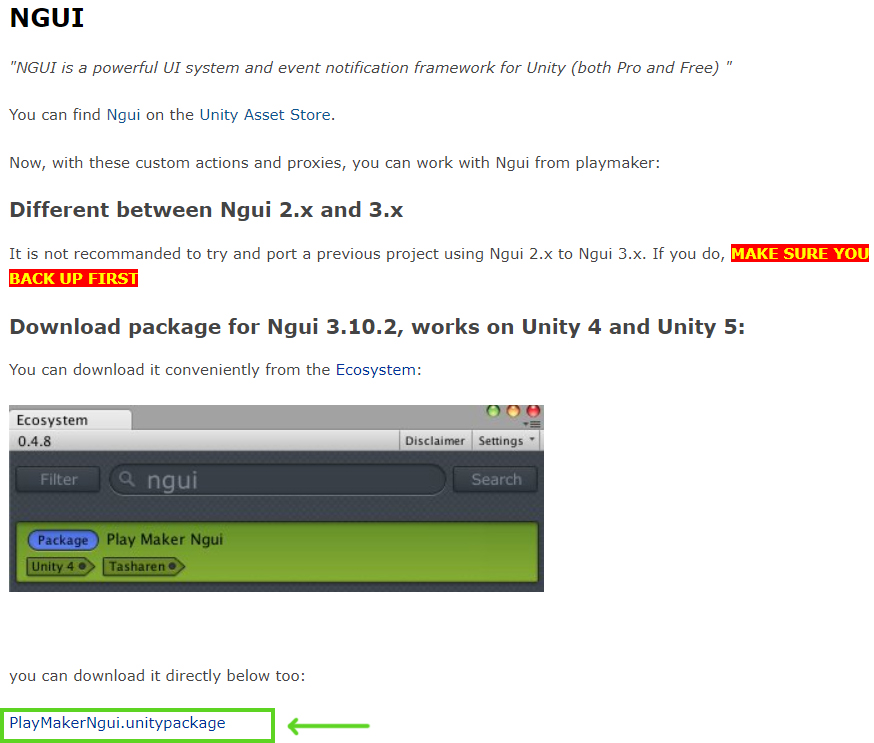
For this exercise you need to install NGUI and NGUI Playmaker events. You can find the install link for PlaymakerNgui package in here.


For the NGUI events to work, you need to find a prefab called NGUI Playmaker Proxy from the Playmaker NGUI folder. Drag and drop the prefab to the hierarchy window.


After installing these packages and adding NGUI Playmake Proxy to the hierarchy, select NGUI -> create -> label from the top toolbar.

You need to create 3 labels. One for the game name, one for starting the game and one for exiting the game.

Then select the start game label and create a new component called box collider for it. Make the collider same size as the start game widget. This will be the area that the player is able to click with mouse.


You'll also need to find a component called ngui playmaker events and after that create new FSM for the start label.

For the start FSM create two more states in addition to the start state. Click the first state in the FSM with right mouse button. Select add transition -> custom events -> NGUI -> on hover enter.


Second state has two transitions: on hover exit & on click. On hover transition means that the player can hover mouse over the label and it affects the label in some way. Link the transition according to the picture below.


In the first state you're going to set color for the label. This color will be shown when player is not over the label and it's not active. To select the color property lock the FSM so that it will always be active.


The go to the label from which you need to drag and drop the label to the state window. Grab the UI label (script) text and drag it to the first state of the start FSM.


Next select the color you want to be displayed when the player is not over the label from the property option.


Do the same for the second state but now choose a different color that you want to be displayed when the player is hovering over the label.


It the last state you'll need action called load level. Write the name of the level you want to load when player clicks the start label.


Now do the same thing for the exit label. In the last state choose application quit action so that the game closes when player clicks exit.


tiistai 7. marraskuuta 2017

Unity platformer - moving platforms and parenting

NME17Ap

lukuvuosi 2017-2018

There are multiple ways to do moving platforms with playmaker. The easiest is to use I Tween actions. Start by creating FSM for the moving platform. In this FSM we need two states. Link the states with finished event. 


Now in the first state you need to find action called I Tween Move To. This automatically moves the object to desired position. Select the vector position according to your object transform. If you want to move object vertically on y axis then change those values and same goes for horizontal x axis. I wanted the platform to move horizontally so I changed the values on the x axis. Remember to change the y axis value too, if your object has other than 0 for the value on that axis.  Then define the speed you want for your platform movement.  Remove check marks from orient to path and move to path. Remember to put your finished event in finish event location. Then copy the action to the other state but change the value for the x axis so it matches the original position of the platform.


Second way to do a moving platform is with animation. You need to choose object you want to animate and in the animation window click create new animation. You'll need to create folder in the project for your animations and save the animation under appropriate name.


Next you are going to make the animation. This is done by adding property and choosing transform position. Click on the time line and create a new key by moving the platform to the desired position. Do this few times and make sure the animation goes smoothly back to the position it started from. You can copy keyframes by choosing a frame and pressing ctrl + c. Then choose other place from the timeline and press ctrl + v to paste the frame.


You can test the animation by pressing play button from the animation window. When you are satisfied with the result stop recording by pressing the record button (red dot) in the animation window. Now when you test the game the animations you have made, they will play automatically.


Last thing we are going to do is make the platforms parented with the character. If this is not done and the character is on the platform, it will not move along with the platform. This might work as a feature in the game for horizontally moving platforms. For the vertically moving platforms it might not be a good idea because it can cause some twitching. So that's why you should use parenting for moving platforms.

Create new FSM for the character. In the first state use collision 2D event action.  You'll have to create new tag for the moving platforms because this action uses collide tag to recognize which object you are colliding with. You'll also need to create new variable. This time the variable type needs to be gameobject because you're going to use it for storing the collider. When you store the collider, you can use it later in the next state. Then we need to sent event to activate the next state.


In the next state use set parent action. Use the gameobject variable we created before. This will set the parent according to the last moving platform the character has collided with. Then you want to add one state before returning to the start state. In that state use the action wait for 0.1 seconds. This prevents creating an infinite loop which will result in error.


You'll also need to make changes in the jumping FSM. In the third state you need to create two new actions. One is collision 2D event because you want to prevent the player for using jump while in air with the moving platforms too. Then there's the set parent action. This time don't choose anything for the parent. It will make the character independent object again and it won't move with the platforms while jumping.

Unity platformer - GUI bars

NME17AP
Lukuvuosi 2017-2018

This time you’re going to learn how to make different gauges eg. health bar and collectible bar with NGUI.

First you need a global variable. This can be player health or things the player is going to collect in the game. Float will be the variable type since the NGUI fill uses float as its variable. Then you need graphics for the bar. This can be done in Photoshop. A simple rectangle will be sufficient for this assignment.


You’ll need to create atlas for the health/ collectible bar. Atlas is a container for all the sprites you need in your GUI. It packs them in a file where you can take individual sprites and use them when needed. Atlas can be done with atlas maker. Simply create new Atlas when a sprite you want to include is chosen. You can add sprites and update old ones any time you wish.


Then you’re going to create sprite from the NGUI tab in the top tool bar. Change the UI sprite type to filled. This enables the use of the float variable as the fill amount. From the UI sprite inspector, you can also change the sprite or atlas you’re using. Fill direction can also be chosen here. In this assignment you can use horizontal direction because the sprite is rectangle shaped. Radial fill direction works best on round shaped sprites.


Now add FSM to the newly created sprite. In the first state you need action called float changed. This will check if a specific float variable has changed and then send event to do another action in another state. In the second state you want to drag the UI sprite and set property for it. Use fill amount as property and your own global variable as fill amount. This FSM will update the fill amount every time the global variable changes eg. if you take damage or collect an object.


You’ll also need float add in the collectible you’re using in order the float changed action to work. Create action add float in the collectible before the state you’re destroying the object. If you want to use this method for a health bar, then use float subtract. The subtract action will decrease your health and then send the information to the health bar so that the player gets visual confirmation from taking damage.

Lastly you need to use the information from the GUI bar. If the collectible bar is full then something should happen. Also it the health bar is fully depleted the playable character will die. Add new state to the fill FSM. This time use float compare action. This will take the global variable used and compare it to a number. Create two events so that if the bar is not filled it goes back to the start state and if it’s filled it will go to the last state.


keskiviikko 11. lokakuuta 2017

TYÖLAINSÄÄDÄNTÖ

NAV16AP ja NME17AP

Lukuvuosi 2017-18


Lue tietoa Suomen työlainsäädännöstä:


Suomen työlainsäädäntö:


Yrittäjän työlainsäädäntöopas:

Nuoret ja työlainsäädäntö:

Työsopimus:
http://www.tyosuojelu.fi/tyosuhde/tyosopimus


Vastaa seuraaviin kysymyksiin ja palauta vastauksesi Yhteiset/Työlainsäädäntö -kansioon. Vastauksista pitää löytyä oma nimi.

1. Mitkä ovat työsopimusten kaksi päätyyppiä?                        
2. Mitä tarkoittaa nollasopimus?     
3. Millaisen lisäsopimuksen allekirjoittamista työnantaja voi vaatia pelialan työntekijältä?
4. Minkä ikäisenä voi mennä töihin?  
5. Minkä ikäisenä voi tehdä itsenäisesti työsopimuksen? 
6. Millä perusteilla EI saa syrjiä työnhakijoita tai –tekijöitä?
7. Millä perusteilla EI voi irtisanoa työntekijää? 
8. Mikä on työntekijän ja työnantajan lyhin irtisanomisaika? 
9.  Mitkä ovat yleisimmät lailliset irtisanomisperusteet ja mikä poikkeus estää niiden käytön?
10. Kuinka usein työntekijälle maksetaan palkka?
11. Kuinka monelta päivältä sairastunut työntekijä saa palkkaa? 
12. Mitä ovat perhevapaat?
13. Mitä asioita käsitellään yhteistoimintaneuvotteluissa? 
14. Kuka valvoo työsuojeluun liittyviä asioita työpaikalla? 
15. Mitkä ovat keskeiset ansiosidonnaiset sosiaalietuudet?  
16. Mikä on työehtosopimus ja ketkä siitä sopivat?


maanantai 9. lokakuuta 2017

Tekijänoikeudet

NME17AP & NAV16AP

Lukuvuonna 2017-2018

Kopiraitin esite tekijänoikeuksista: http://www.tekijanoikeus.fi/wp-content/uploads/2015/03/kopiraitti-esite.pdf

Aalto yliopiston infopaketti koskien pelejä ja tekijänoikeuksia: https://wiki.aalto.fi/display/copyright/8.+Pelit

Tekijänoikeudet ja opiskelu: https://docs.google.com/presentation/d/1nrXen32cDJsLmxfVQ85L3QUw1oblmNoZqt_kuDnc2qs/pub?start=false&loop=false&delayms=3000&slide=id.i0

Opettajan tekijänoikeus: http://www.opettajantekijanoikeus.fi/kopiokissa/

TEHTÄVÄ 1:

Mitä tarkoittaa teoskynnys?

TEHTÄVÄ 2:

Mitä oikeuksia tekijänoikeus sisältää?

TEHTÄVÄ 3:

Kauanko tekijänoikeus on voimassa?

TEHTÄVÄ 4:

Mainitse kolme sivustoa, joilta voi etsiä avointa sisältöä.

TEHTÄVÄ 5:

Mitä tarkoittavat CC-lisensseissä seuraavat merkit?


TEHTÄVÄ 6:

Tee Kopiraittilan sivuilta tekijänoikeustestit.

Kaikki tehtävät palautetaan luokan yhteiseen tekijänoikeudet kansioon. Ota viimeisen tehtävän testistä print screen ja liitä se kuvana kansioon.

tiistai 26. syyskuuta 2017

Unity platformer - Animating sprites

NME17AP

Lukuvuosi 2017-2018

Animating sprites in Unity is fairly easy. First thing you’re going to need is a sprite sheet. It’s a (preferably) Photoshop document where all the sprites are evenly placed for animation. Make sure that there are no odd pixels in the sprite sheet since those are a real pain to remove later and if not removed they will create small selection areas in the sprite editor and those will be included in the animation.

When you have the sprite sheet import it into Unity. Select the usual settings from the inspector but this time choose multiple for the sprite mode. After applying the settings click open the sprite editor. 


If the sprites are placed correctly in the sprite sheet, then automatic slicing can be used. This will create the animation frames automatically. If the sprites are following a regular pattern on the sheet, then grid by cell size/count can also be used.


In the project window you can no click the sprite sheet open. Select all sprites with shift key and drag them to the scene. This should automatically open a window for saving your animation. Create a new folder named animations and save your animation under it.


Now you can start to work on your animation. Set your sample rate for 60. This means it plays 60 per second. Now move your frames in the animation window so that you get the right speed for a smooth animation. With the play button you can test the animation and when it’s complete push the record button to stop the recording. Create animation for both idle and walking states.


Then you need to open the animator window. It can be opened from the top tool bar under window tab. In the animator window you need to create a new state for walking. By default, there should already be idle state. Rename the created state and choose the correct motion for it. The motion will be the earlier created animation for walking which should be found in the list of motions.


You need to connect the states. This is done with transition. If you right click the idle state a window pops up allowing you to choose the make transition action. Do this both ways so the animation will flow back to the idle state.


Next stop is to create a new parameter. This will define which state will be used when moving the character. Create Boolean and name it. Boolean is a data type containing two values: true and false.


Now you need to use the newly created parameter in the states. You can open new options by clicking the transitions in the inspector. At the bottom in the conditions you can use your boolean parameter. The idle state will need to use true value because with true in transitions to the walking state. In the walking state it will be opposite.


Lastly you need an action for the playmaker to understand the animator. Use set animator bool action in your walking FSM. Put checkmark in the value section. This will make the bool true and walking animation will commence. Don’t put the checkmark in the idle state and the idle animation will play when the character is not moving.


Here are some Unity tutorials explaining the animation and animator more profoundly: